

Appearance
Themes for light and dark, the window material and tint, fonts and each session's own look.
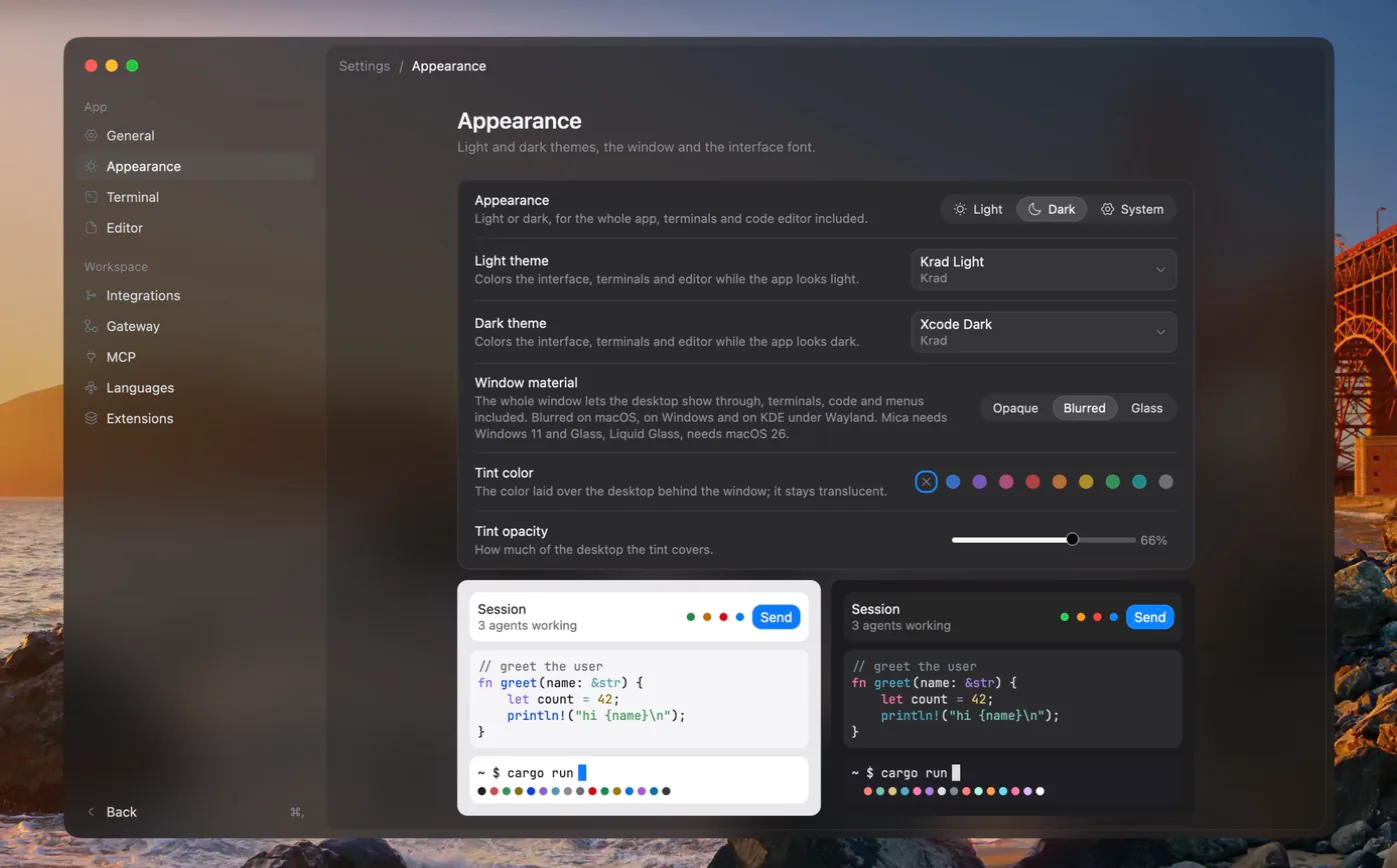
Themes
A theme is one set of colours for the whole app: the interface, the terminals' sixteen ANSI colours with background and cursor, and the code editor's syntax. You pick one theme for the light appearance and one for the dark, in Settings › Appearance.
The appearance itself is Light, Dark or System, set in Settings › General. With System, the system appearance chooses between your two themes.
The theme library holds:
- the app's own themes;
- well-known editor themes shipped with the app, only those whose licence allows redistribution, each credited with its author, licence and link;
- themes you make yourself: start from any library theme, change its colours group by group, and the app saves the result as a JSON file in the
themesfolder of the config folder.
A theme does not change how translucent the window is.
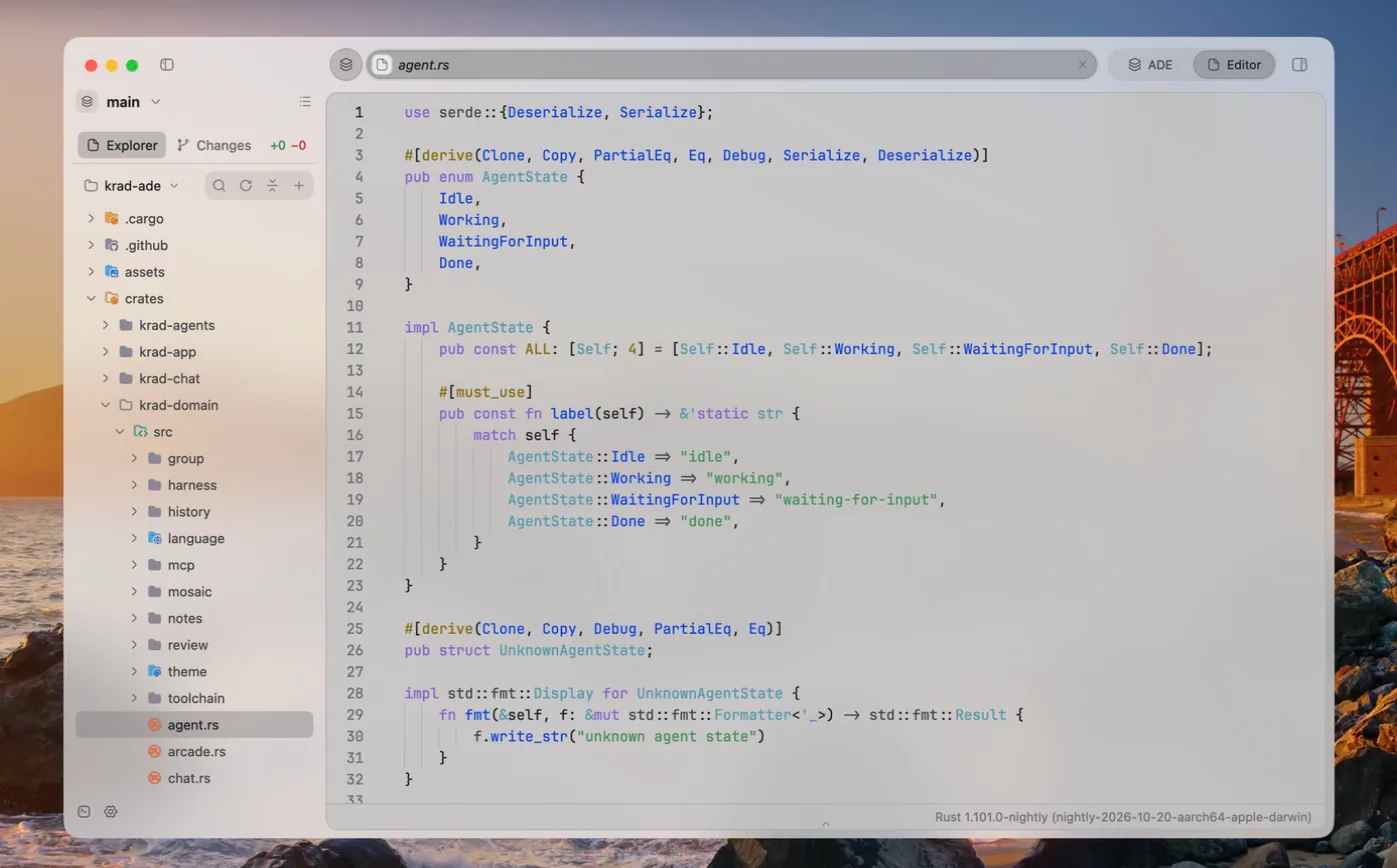
Window material and tint
The window can be Opaque, Blurred or Liquid Glass. A translucent window takes a tint: a colour and an opacity laid over the desktop behind it. Tint opacity sets how much of the desktop the tint covers; the window always stays translucent.
Fonts
Settings keeps three font choices: the interface font, in Settings › Appearance, the terminal font, in Settings › Terminal, and the editor font. Ligatures can be turned on or off.
The app ships Inter and JetBrains Mono. On macOS it uses the system's own SF fonts instead.
Make text larger, smaller or reset it from the keyboard:
| Action | Keys |
|---|---|
| Larger | Cmd+Alt+= |
| Smaller | Cmd+Alt+- |
| Reset | Cmd+Alt+0 |
A session's own look
Give each session a colour and an icon from its right-click menu, where you can also rename it. The sidebar draws the icon in that colour before the session's name.
The sidebar
The left sidebar has three behaviours: pinned open, folded away, or hidden until you rest the pointer at the left edge of the window, where it slides in over the content. Toggle it with Cmd+Ctrl+S on macOS or Ctrl+Shift+B on Windows and Linux.