

First session
Open a folder as a group, start a session and send the first message of its chat.
Work in Krad ADE is organised in three levels:
- An environment is the work context you handle as one. It lives on one host, this computer or a remote host, and everything inside it runs there.
- A group binds sessions to a root folder of a repository. Its terminals start there, and the file tree and git state come from there.
- A session is a line of work inside a group. It opens on a chat and grows with shells, more agents and files as tabs.
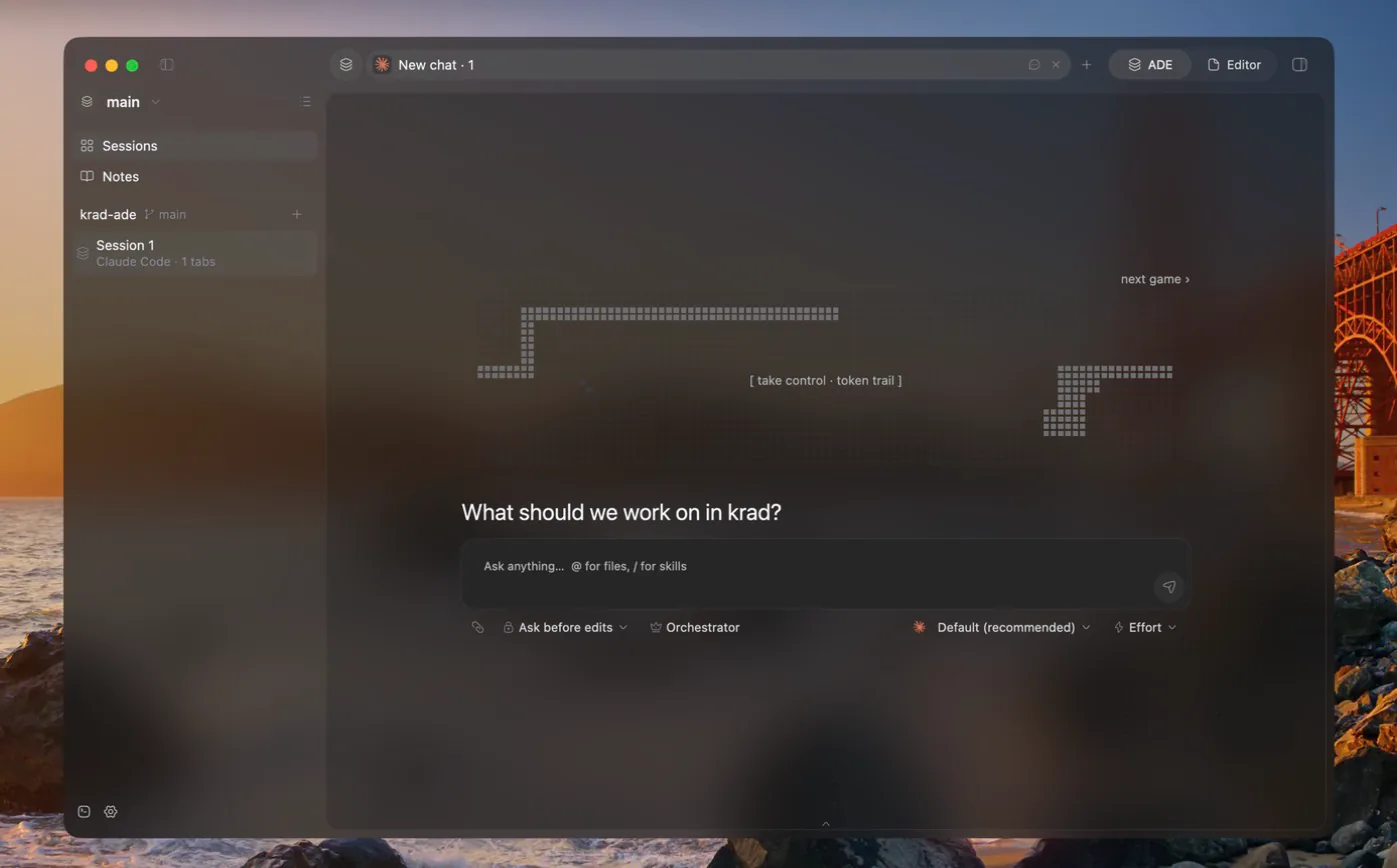
Start working
Open a folder
Open the environment selector, the icon at the bottom left of the sidebar. Its menu switches worktree or group, opens group settings, opens a folder and opens Settings. Open the folder of a repository to work in; it becomes a group.
Open a session
A new session opens on a chat. The sidebar lists the group's sessions, and every group keeps at least one.
Pick a model
There is no harness to choose when a chat opens. The model picker decides it: picking a Claude model runs Claude Code behind the chat. Claude Code, opencode v2 and Codex each have their own tab in the picker, with search and the keyboard. See Harnesses.
Send the first message
Mention files and images with @ or by pasting them, call skills with /, and send. Until the conversation starts, the empty chat shows the Arcade: a dot-matrix banner where a small game plays itself until you take control.
What the sidebar shows
Hooks report whether each agent is working, waiting for you or done, and the sidebar shows that agent state next to each session:
| Agent state | Meaning |
|---|---|
| Idle | Not working and nothing new to see |
| Working | The agent is running a turn |
| Waiting for input | The agent needs you: a permission, a question or a plan |
| Done | It finished its turn and you have not looked yet |
Give a session its own colour and icon, or rename it, from its right-click menu.
Grow the session
- Open more chats as tabs of the same session, or a shell beside the focused tab. See Terminals and panes.
- Turn the chat into the session's lead to split the work across Workers. See Lead and Workers.
- Switch to Editor mode to edit the code yourself. Nothing closes on the way.
Restored as you left it
When the app reopens, environments, groups, sessions, panes, scrollback and conversations come back. There is no session daemon: closing the app ends every terminal's process. Shells start again in their last working directory with their saved scrollback, and chats continue their harness's conversation by its resume id. See Configuration for where the layout is saved.
Closing the app, or restarting it for an app update, ends running terminals and live agent processes. Before an update restart, the app warns about running terminals.