

Editor mode
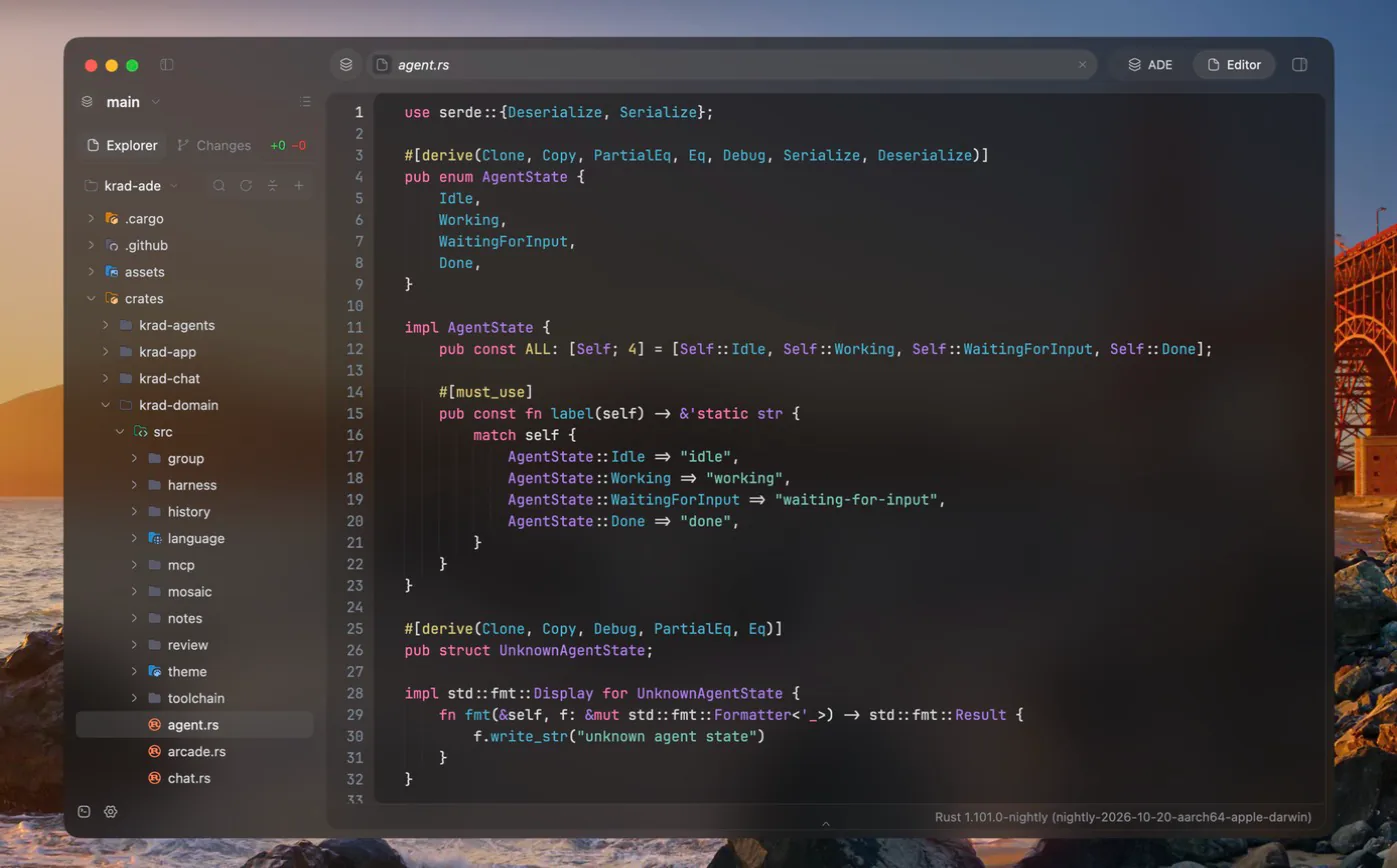
The work mode for editing code, with file tabs in the work area, a chat in the side panel and terminals in the utilities panel.
The window has two work modes. ADE mode, the default, gives the work area to sessions with their chats and terminals. Editor mode gives it to open files: the agent's chat sits in the side panel and the terminals in the utilities panel.
Switching
Switch from the toggle in the top bar, or with Cmd+Alt+E on macOS and Ctrl+Alt+E on Windows and Linux. The work mode is set for the whole window at once. Nothing closes when you switch: every session, tab, chat, terminal and open file is still there, just placed differently.
| Area | ADE mode | Editor mode |
|---|---|---|
| Left sidebar | Views and the sessions of each group | The group's file tree and git changes |
| Work area | The session's chats, shells and agents | The session's file tabs, in the session's own panes |
| Side panel | File tree and git changes | The chat you used last in the session, and a menu to reach its other chats |
| Utilities panel | Activity log and system terminals | Activity log and terminals |
Both modes share the same panes and the same open files, so a split made in one mode is still there in the other. See Terminals and panes.
File tabs
A file tab edits one file with syntax highlighting, multi-cursor and find and replace. One click on a file opens it as the session's preview tab, shown in italics; the next one-click file replaces it. Double-clicking the file or its tab pins it, and so does typing in it. Pinned file tabs reopen with the session; the preview tab does not.
Unsaved changes put a dot on the tab, and closing it asks first. If an agent rewrites a file you have open, the tab reloads on its own when you have no unsaved edits; otherwise it lets you choose between the version on disk and yours. The editor is built for files of up to roughly 50,000 lines; a file larger than 2 MB shows a notice instead of opening.
Finding your way
- Quick open and find in files work in both modes.
- Minimap. A scaled-down picture of the file beside it; drag or click it to scroll.
- Navigation history. Walk back and forward between places you jumped to, such as a definition, a reference, a problem or a search result, with a two-finger swipe, the mouse's back and forward buttons or their shortcuts.
| Action | Keys |
|---|---|
| Quick open | Cmd+Shift+O |
| Find in files | Cmd+Shift+F |
| Save | Cmd+S |
| Back, forward | Ctrl+-, Ctrl+Shift+- |
| Side panel | Cmd+Alt+B |
The full list is in Keyboard.
Explorer and changes
The file tree shows the folders and files under the group's root with their git changes and problems. Create, rename, move and delete them there; the New menu offers the file templates of the folder. The tree can climb above the group's root to any folder of the disk, showing git changes only inside a repository.
The git changes list staged changes, discard, history drawn as a graph of lanes, stashes and a branch switcher. See Groups and worktrees.
Language features in file tabs come from language servers and are the same in both modes.