

Terminals and panes
Shells beside the chat, split views with snap zones and layout templates, and the utilities panel.
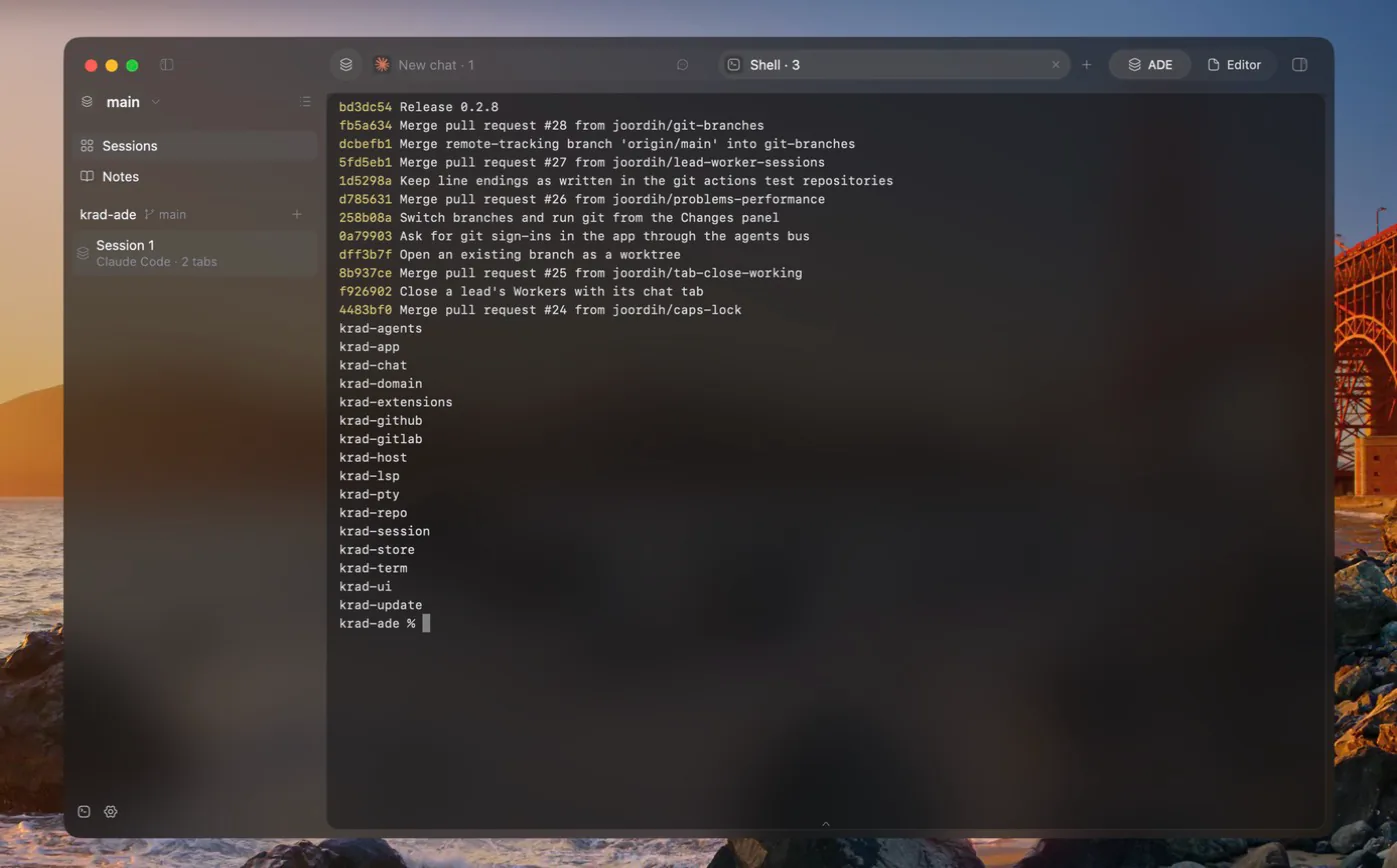
A terminal is a terminal view bound to a single shell process. Terminals in Krad ADE use real terminal emulation from libghostty-vt, with the kitty graphics and kitty keyboard protocols, ConPTY on Windows and WSL shells through wsl.exe.
Tabs
Each pane has a strip of tabs: chats, shells, agents and file tabs. The button at the start of the strip opens the tab picker, a searchable list of the strip's tabs with each tab's shortcut; typing a name no tab has creates one.
| Action | Keys |
|---|---|
| New chat tab | Cmd+T |
| New shell beside the focused tab | Cmd+D |
| Show tab 1 to 9 | Cmd+1 to Cmd+9 |
| Close tab | Cmd+W |
| Close all tabs | Cmd+Shift+W |
| Copy, paste | Cmd+C, Cmd+V |
| Search the terminal | Cmd+F |
Settings › Terminal sets the font, copy and paste and the colours of terminals. Copy can happen with the shortcut, on select, or both.
Panes and snap layouts
A session can show up to four panes. Before any split, the session is a single pane and its tabs live in the top bar. After a split, every pane gets a tab strip of its own, and the top bar shows the session's name instead.
- Snap zones. While you drag a tab over a pane, it offers eight snap zones: a half along each edge and a quarter in each corner. Drop the tab on one and the pane splits, with the tab in the new part.
- Layout templates. Drag a tab up to the middle of the top edge and a row of templates appears: side-by-side columns, stacked rows, one large pane next to two small ones, and a grid of four. Drop on one slot of a template and the whole view takes that layout, with your tab in that slot.
- Moving tabs. Drop a tab on another pane's strip to move it there.
- Resizing. Dividers between panes drag to resize and snap to halves and thirds.
- Closing. A pane whose last tab closes or leaves goes away, and its neighbour takes its room.
The session remembers its layout, the size of each pane and which tab each pane was showing.
The utilities panel
The utilities panel sits at the bottom of the work area and opens from its arrow. It has tabs for the activity log and the system terminals, and any terminal you drop on it becomes one more tab. Toggle it with Cmd+Shift+E on macOS or Ctrl+Shift+E on Windows and Linux.
A system terminal belongs to no group or session. It starts in your home folder on the environment's host and reopens with the environment, with a new shell. The sidebar's terminal button, beside the settings gear, opens one. A system terminal can be dragged into a pane like a tab; it stays the environment's, and leaving the pane returns it to the Terminal tab.
What survives a restart
No background service keeps shells alive, so quitting the app ends them all. When the app opens again, every shell restarts in the folder it was last in, its earlier output restored, and agents continue by their resume id.
WSL is a shell inside a local environment, not a host. For another machine, use a remote host.